NexPOS Merchant / Merchant Admin

Merchant Admin / The back office

The back office.
Behind the counter.

Catalogue, stock, orders, members, promotions and reports for every branch you run, in a browser, from anywhere.

Nothing is rung up here. This is where you look it up afterwards — what sold, what it cost you, who bought it, and what is left on the shelf.
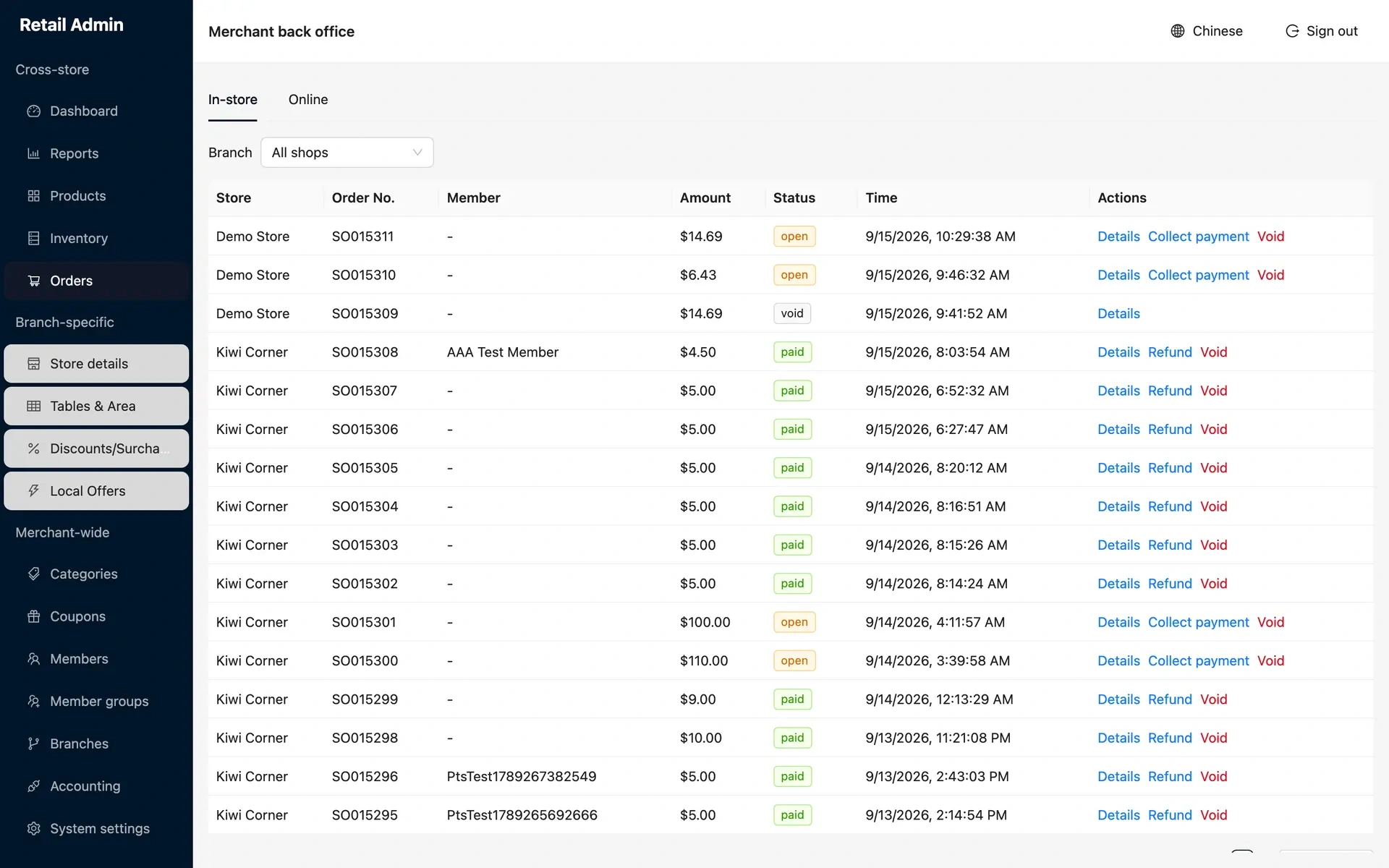
Merchant Admin order list
Merchant Admin order list Click to enlarge

See your business

Review every branch together or focus on one store.

Explore features

Keep the detail connected

Work with catalogue, stock, orders and member balances.

Explore features

Read it back

Explore seven reports and the Odoo accounting connection.

Explore features

01 / Dashboard

The morning check, on one screen

Open the dashboard and you have the answer to how did we do and what needs attention. Orders, gross, refunds and net across every branch combined, or one branch on its own, with the day's shape and what carried it.
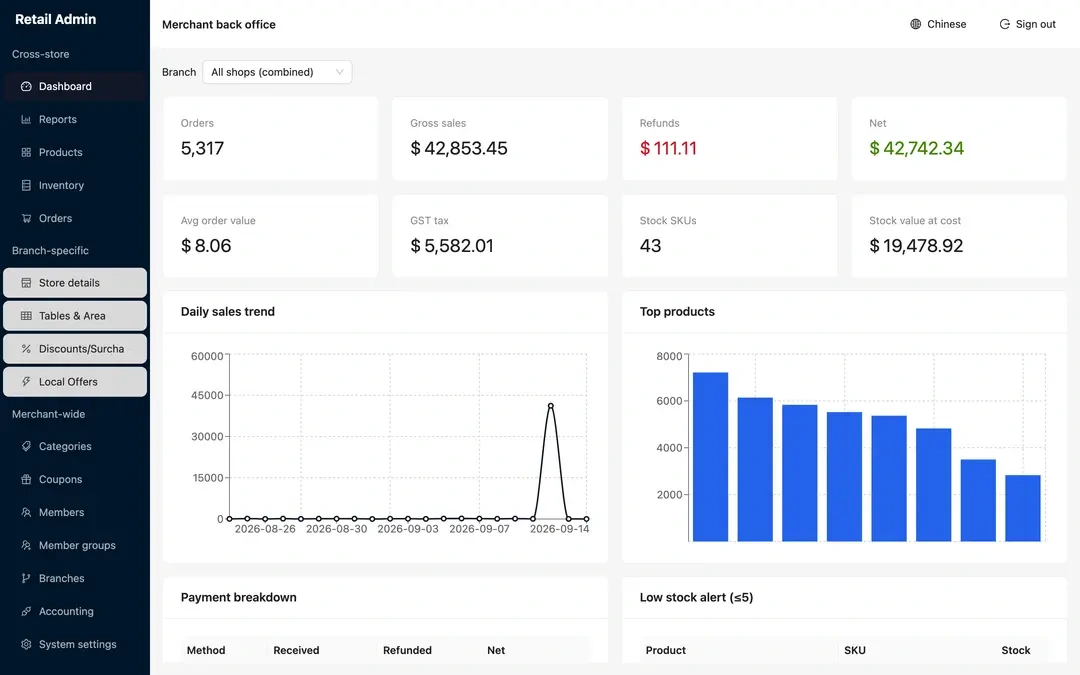
  • Average order value, GST, stock count and stock value at cost
  • Daily sales trend and your top products for the period
  • Payment breakdown: received, refunded and netted by method
  • Low stock alert — every product at five units or fewer, ready to reorder
All shops combined, or one branch — the same screen either way.
All shops combined, or one branch — the same screen either way. Click to enlarge

02 / Catalogue

A catalogue you can actually load

Prices, costs, barcodes, categories and photos, with separate switches for what shows on the register and what is published to your online store. Coming off another POS or a spreadsheet? Upload the file you already have and map the columns on screen.
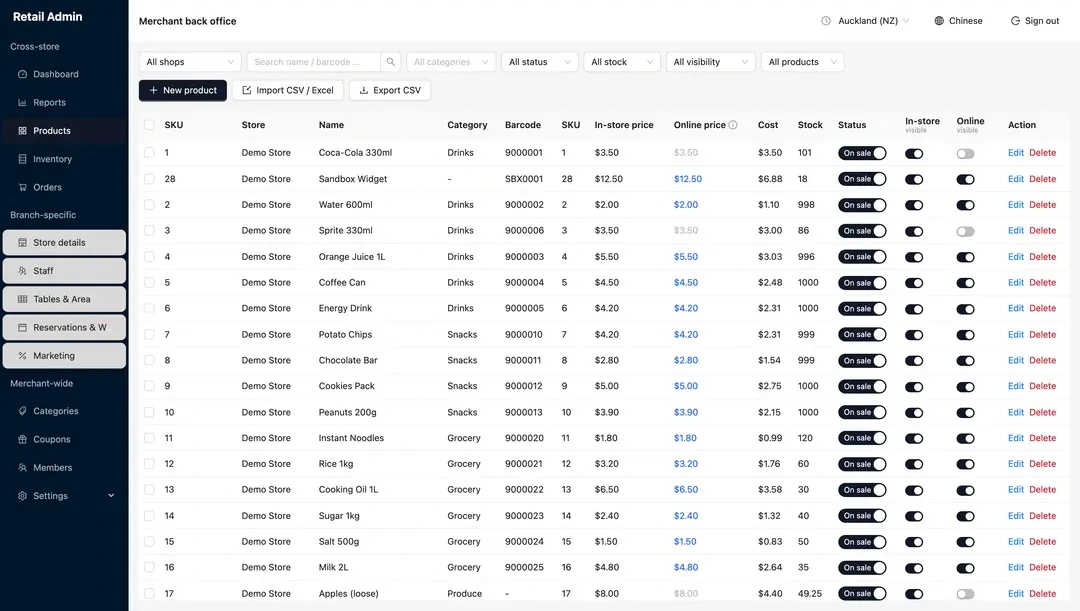
  • CSV and Excel import with the columns guessed for you and a live preview
  • Stock tracking off for the lines you never count
  • Add-on categories for toppings and extras, offered at the register
  • 18+ flag so the till asks for age verification
  • Markdown barcodes for a single near-expiry item, printed and scanned
Three switches per product: on sale, visible in store, visible online.
Three switches per product: on sale, visible in store, visible online. Click to enlarge

03 / Stock movements

Stock movements with a reason attached

Receive a delivery, write off waste, correct a figure or set it from a count — each as its own movement type, each with a note. Every change is logged, sales included, so a figure that dropped overnight can be traced back to the orders that moved it.
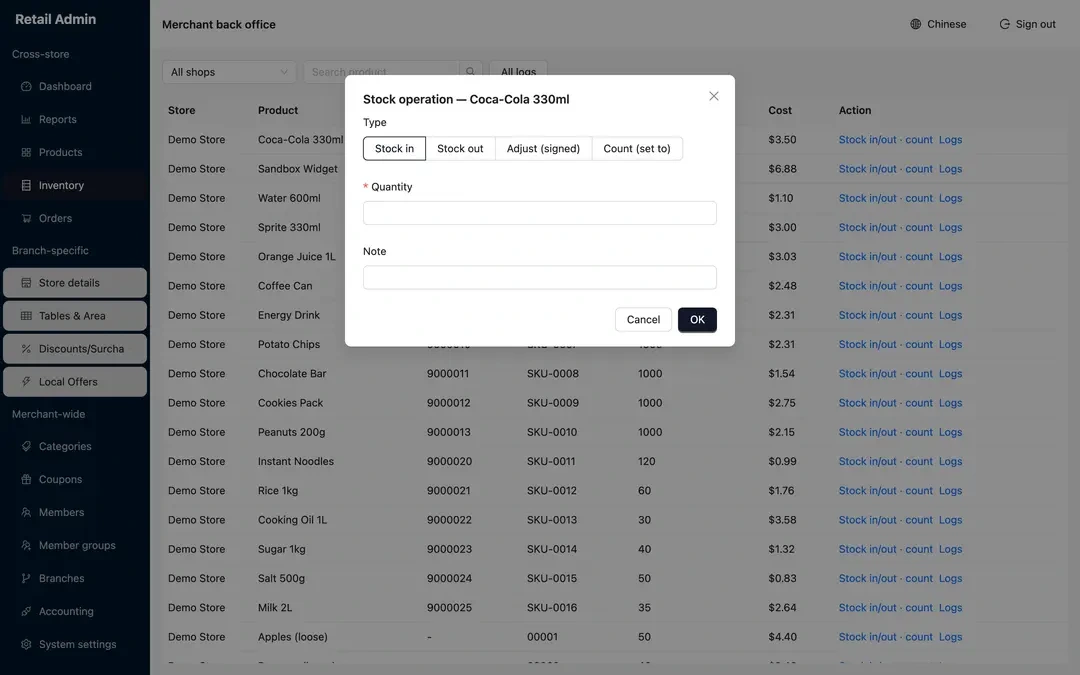
  • Stock in, stock out, signed adjustment, or count-to
  • Stock on hand and cost per product, per branch
  • A full movement log per product, or across the whole list
Count (set to) replaces the figure; the others change it by what you type.
Count (set to) replaces the figure; the others change it by what you type. Click to enlarge

04 / Orders

Every order, in store and online

Look up any sale from any branch and open the whole record: line items, discounts, surcharge, GST, the member, what was restocked and what it was paid with. Collect payment on an order still open, refund it, or void it.
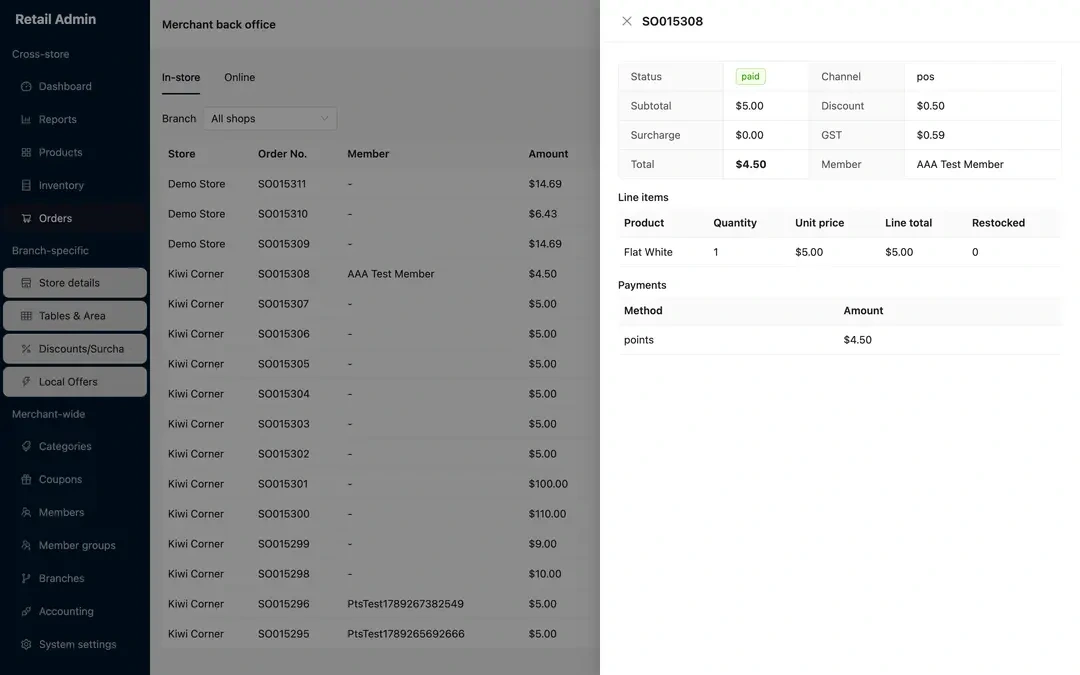
  • In-store and online orders in one place, filtered by branch
  • Partial refunds, and voids that restock and return stored value
  • Online orders carry delivery details, payment state and settlement state
  • Proof of delivery and a timeline on every online order
The detail drawer: totals, line items, what was restocked, and what it was paid with.
The detail drawer: totals, line items, what was restocked, and what it was paid with. Click to enlarge

05 / Seven reports

Seven reports over the same period

Set the date range and the store once at the top, and every tab follows. Summary, order-by-order sales, payment by method and acquiring channel, categories, per- item margin, your top twenty, and what you wrote off.
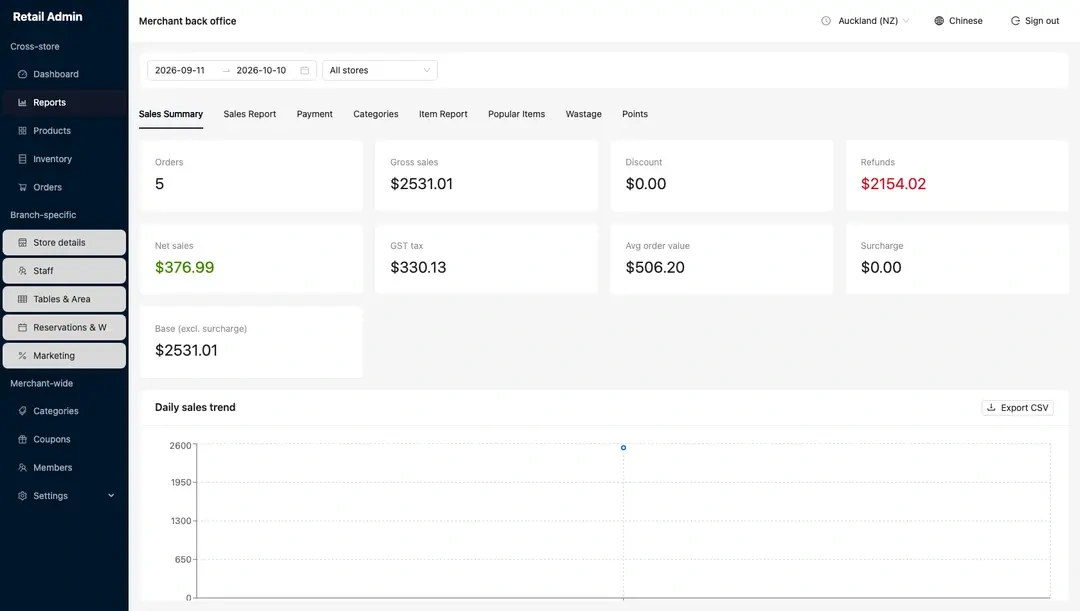
  • Presets for today, last 7 days, last 30 days, this month, last month
  • Margin and margin % per product and per category
  • Wastage with the operator and the reason on every write-off
  • CSV export of whatever is on screen, for your accountant
Set the period once; the other six tabs use it too.
Set the period once; the other six tabs use it too. Click to enlarge

06 / Members

Members, balances and points

One member list across every branch. Give someone a personal discount or put them in a group that carries one. Top up stored value, spend it or write it off, and read back every movement with its note.
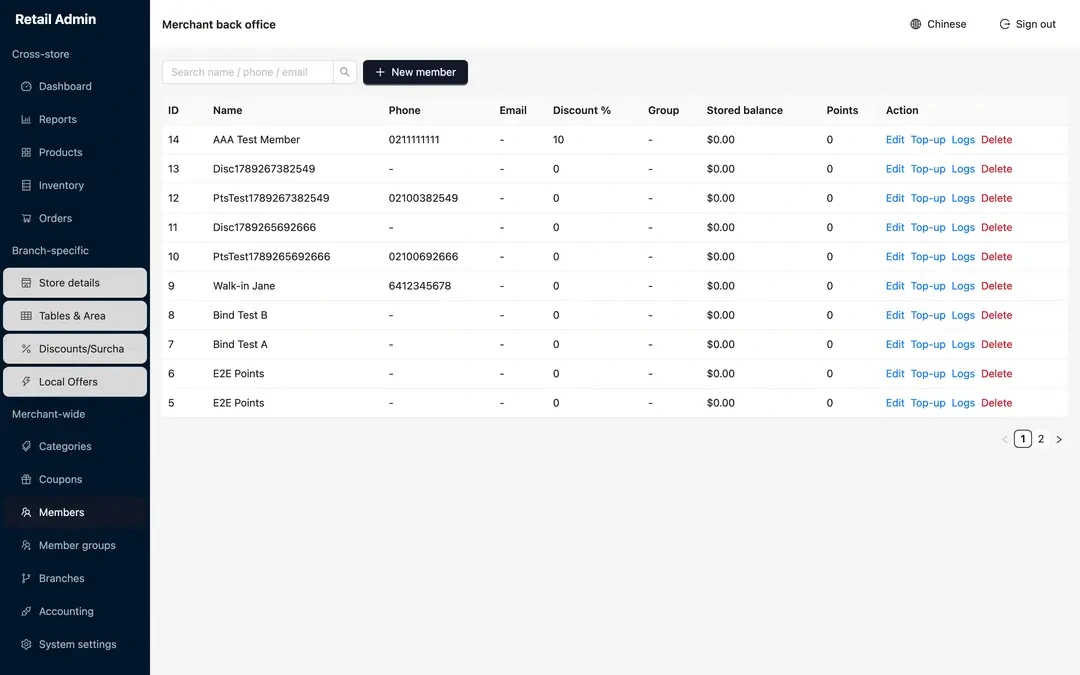
  • Search by name, phone or email
  • Member groups with a default discount
  • Stored-value log per member, newest first
  • Points and balances the register already knows about
Balances change through top-ups here and through sales at the till.
Balances change through top-ups here and through sales at the till. Click to enlarge

07 / Promotions

Promotions that reach past the counter

Order-level discounts and surcharges the cashier can apply, coupon codes for your online store, and Local Offers that put surplus stock or a quiet-hours deal in front of nearby customers.
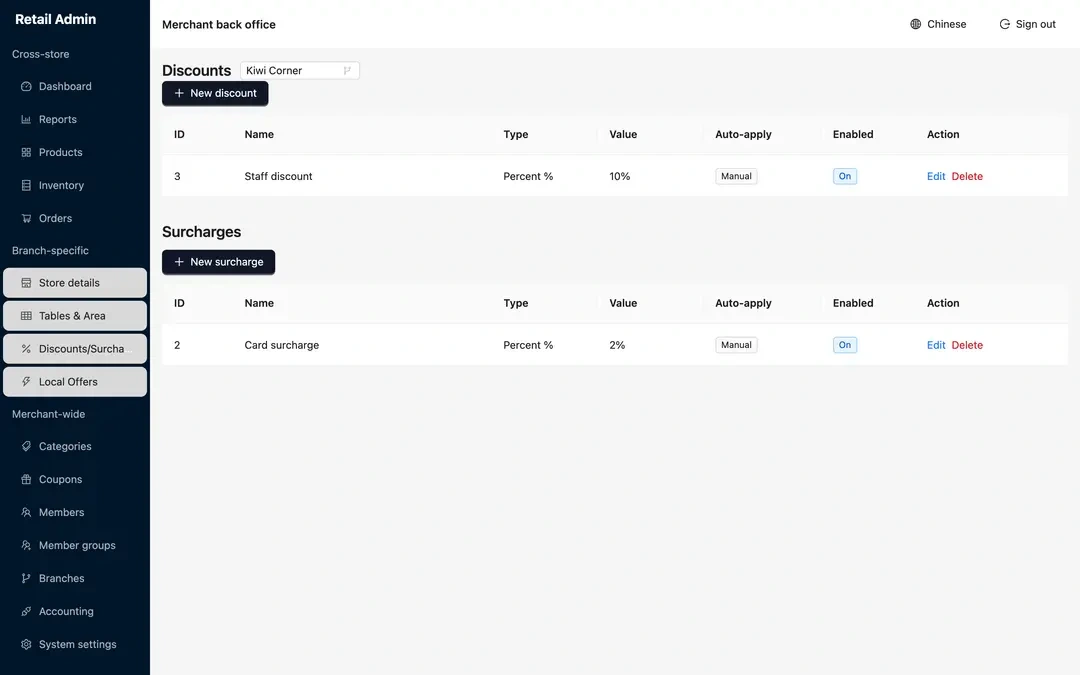
  • Auto-apply a surcharge, or leave it for the cashier to choose
  • Coupons with the conditions you set, redeemed at the e-shop checkout
  • Flash Deal and Surplus Rescue offers, with pickup redemption by QR or code
  • Start and end dates on anything that should not run forever
Discounts above, surcharges below, both per branch.
Discounts above, surcharges below, both per branch. Click to enlarge

08 / Connections

Payments, devices and delivery platforms

Connect the accounts once, then decide what the checkout offers. Card through Stripe, TickTap QR, EzyPay terminals and kiosk — bound in one place, switched on for the e-shop and the register separately.
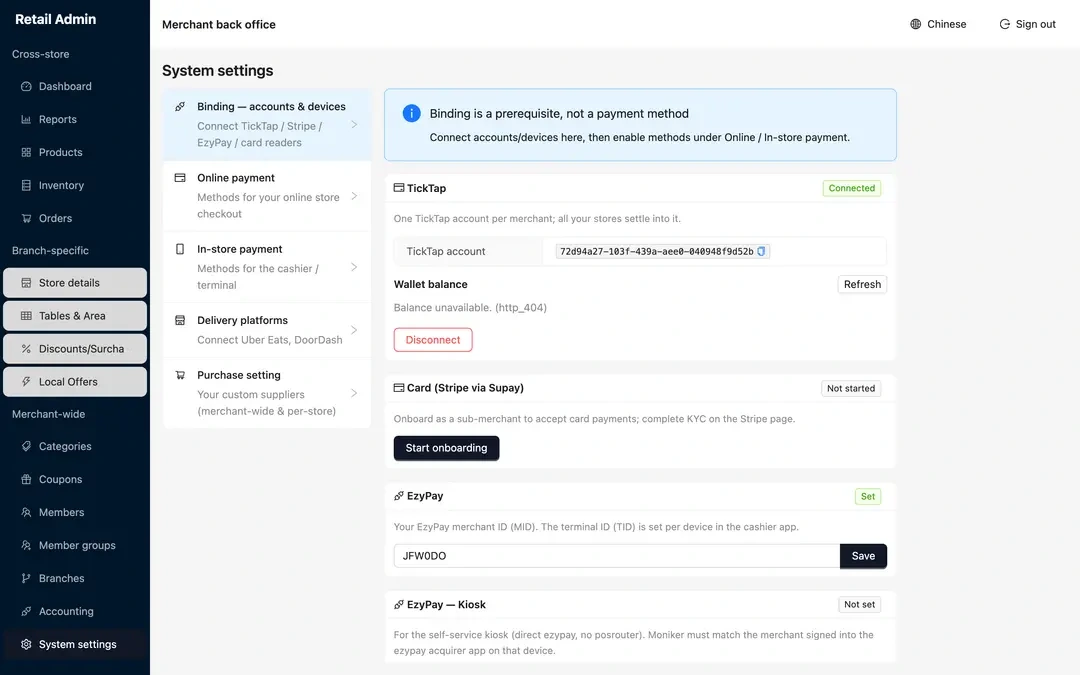
  • A method you have not connected cannot be switched on by mistake
  • Choose which terminal methods the cashier sees: card, EFTPOS, wallets, UnionPay
  • Uber Eats and DoorDash connected with the store ID and key they issue you
Binding an account is a prerequisite, not a payment method.
Binding an account is a prerequisite, not a payment method. Click to enlarge

09 / Accounting

Post the day's takings to your accounts

Paid orders can go into your own accounting system as tax invoices, in real time, once a night, or only when you ask. Nobody re-keys the takings, and you can see what posted and what did not.
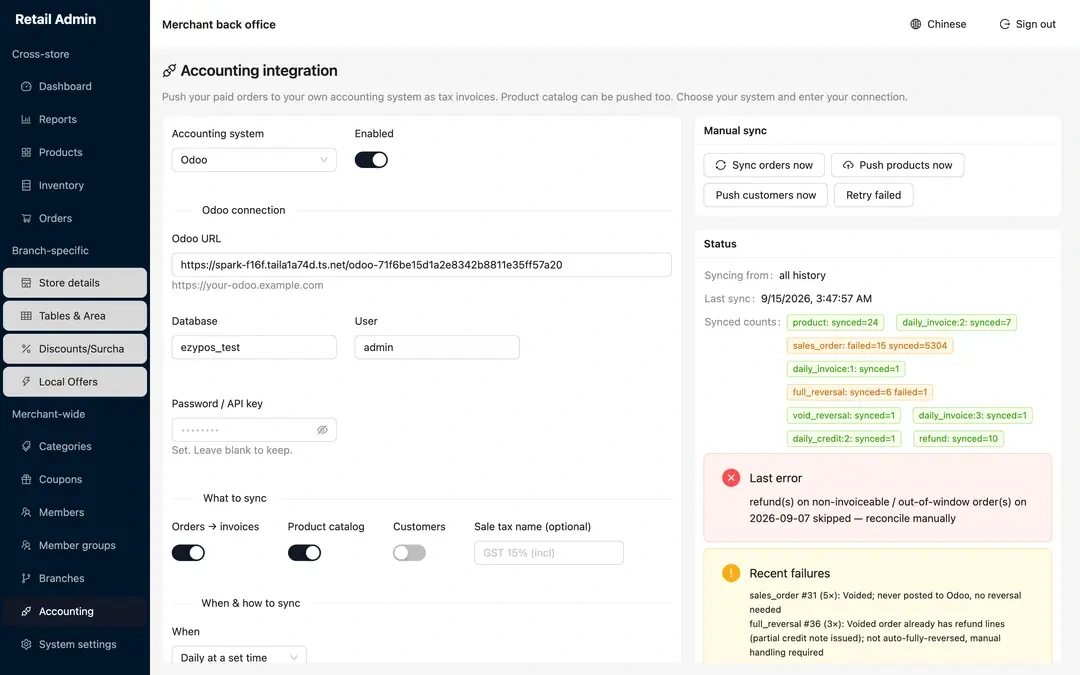
  • Odoo supported today, with orders, catalogue and customers each optional
  • One invoice per order, or one combined invoice per store per day
  • Test the connection before you save it
  • Recent failures listed with the reason, and a retry button
The right-hand column is the health of the integration: last run, what posted, what did not.
The right-hand column is the health of the integration: last run, what posted, what did not. Click to enlarge

YOUR BUSINESS FOUNDATIONS

Set up once,
then left alone.

The structure the rest of the system hangs off. Most of it is a first-week job.

Branches

Every product, price, stock figure and table plan belongs to a branch. Add stores as you open them; the dashboard and reports combine them.

Manager logins

Give a store manager their own account into the back office and the till, scoped to their branch and nothing else.

Your online store

Store name, address, theme, opening switch, delivery and pickup, and one markup that lifts online prices above shelf prices across the branch.

Tables and areas

Lay the room out once — zones, table numbers and seats — and the cashier taps it on the board.

Categories

Shared across branches, ordered the way you want them on the cashier’s grid, with add-on-only categories for extras.

Suppliers

Your own supplier list, merchant-wide or per store, ready for staff raising a purchase in the app.

USER MANUAL

Learn Merchant Admin.

Step-by-step instructions with the original product screenshots.

Read the Merchant Admin manual

THE OTHER HALF OF NEXPOS MERCHANT

NexPOS App

Explore NexPOS App

LET’S COMPARE YOUR CURRENT SETUP

Bring us your current
merchant statement.

Send it over and we will tell you what you would be paying on CloudBridge. If we cannot beat what you are on, we will say so.

Contact CloudBridge